Learn without stopping what you're doing.
StickyWords keeps the words, phrases, facts and formulas you're learning quietly in a corner of your screen, one at a time, while you work.
Free · No ads · No account · Works offline · Windows 10 & 11
The Microsoft Store version and the 13.7 MB zip are the same build.
foreign languages, phrases, formulas, dates, whatever…
Version 3.0.1 · Windows 10 & 11Why StickyWords
No sessions. No streaks. No account.
Ambient, not deliberate
Nothing to start, nothing to grade, no streak to keep. The note takes a corner of a screen you are already looking at.
It waits for you
Rotation pauses by itself when the pointer comes near, so an item never changes out from under you mid-read.
Out of the way by design
No title bar, toolbar only on hover, off the taskbar and out of Alt-Tab, clear of the work you were doing.
How it compares
Not another learning app.
| StickyWords | Flashcards | Language apps | |
|---|---|---|---|
| Uses your own material | Yes | Yes | Sometimes |
| Works while you work | Yes | No | No |
| Study sessions required | No | Usually | Usually |
| Account required | No | Often | Usually |
| Offline | Yes | Depends | Depends |
| Your screen | Yes | No | No |
Works alongside your course or flashcard app, keeping this week's material in sight between sessions.
Not only languages
Anything that comes in pairs.
A list is a set of pairs, and the note shows you one side and then the other. Set it to hold the answer back for a beat and it quizzes you. Leave both showing and it simply keeps the material in front of your eyes.
You provide the pairs. StickyWords keeps them in sight. It does not arrive empty either: six lists are built in, so something is rotating the moment you open it. See the word lists.
Who puts one in the corner of their screen
Three weeks before the flight
A holiday, and a wish not to point at the menu. Fifty words, high motivation, a hard deadline. If you never open it again after the trip, the trip worked.
WeeksThe exam candidate
Not a language at all: cases and what they decided, dates and what happened, drug names and what they do. Two things that have to be linked, on a screen you already revise on.
A termThe vocabulary a job assumes
The jargon of a new industry, or the business register of a language you can order coffee in but not run a meeting in. Learned in the same hours as the work.
MonthsThe one who stays
Living abroad, or a heritage language half-remembered. No deadline means no urgency, which is exactly why an ambient note is the thing that survives.
YearsWhat it does
Small enough to ignore, present enough to work.
Most vocabulary apps hand you a list somebody else chose. StickyWords shows what you are actually learning: from a class, a novel, a job or an exam.
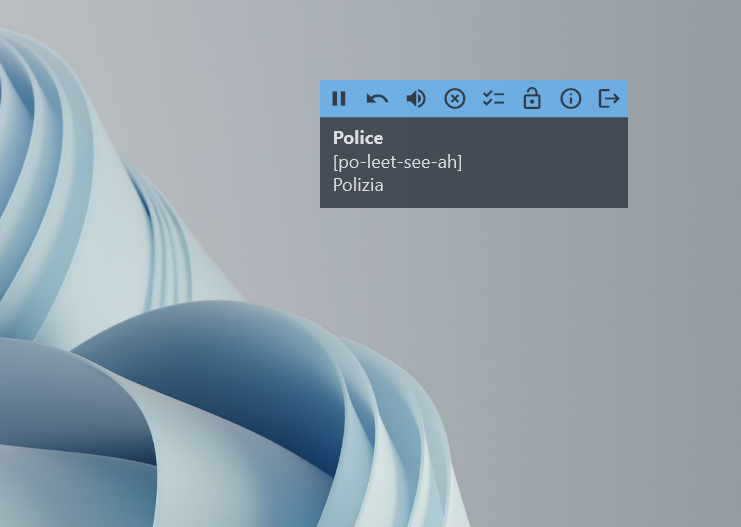
On top, out of the way
- Always in sight
- A small frameless note that stays above your other windows, as translucent as you like.
- Hear it spoken
- Pronunciation comes from the voices already installed on your computer. Nothing is sent to a server.
- Test yourself
- Show the prompt first and the answer a few seconds later, or turn it around and recall the word from its meaning.
Set it up once
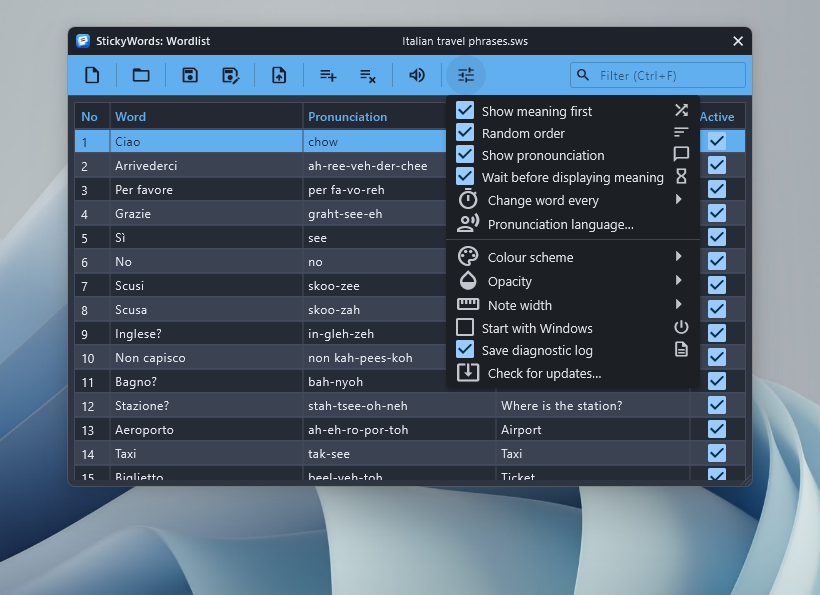
- Your own rhythm
- Choose how long each item stays on screen, and whether the list runs in order or at random.
- Fits your desktop
- Colour, transparency and width, so the note stays visible without becoming a distraction.
- There when you log in
- Switch it on once and the note is already in the corner when you sit down.
Your own lists
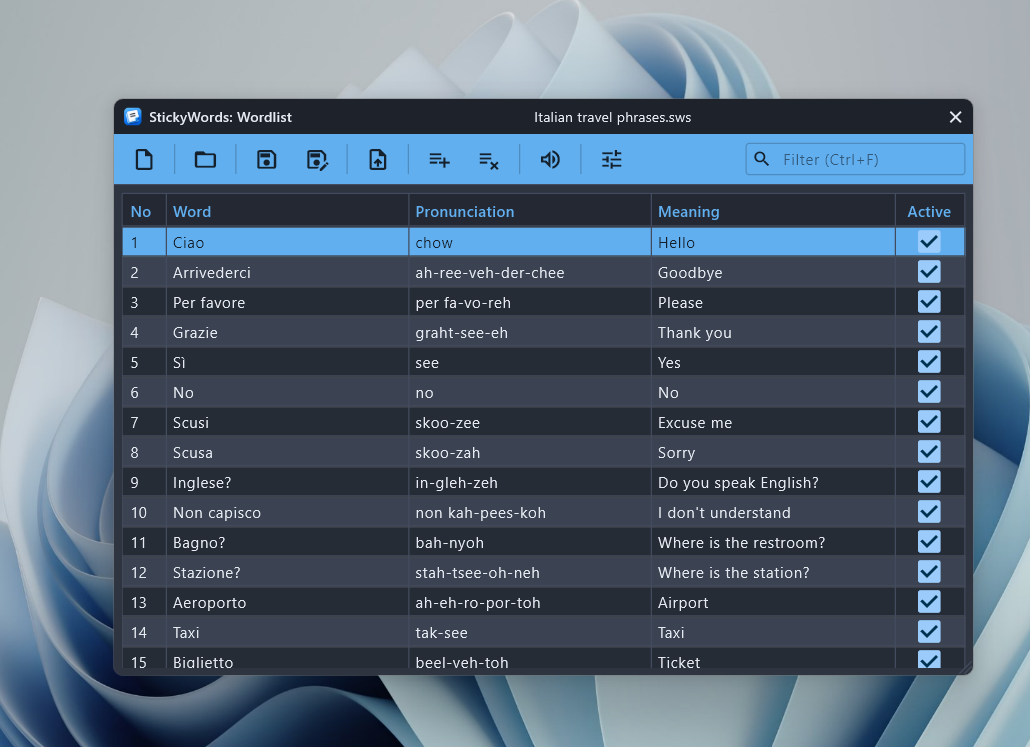
- Type a list straight in
- Every cell edits in place, with a filter for finding one row in a long list.
- Retire the words you know
- Switch a word off from the note once it has stuck. It stops coming round, and stays in the list.
- Ordinary files on your own disk
- Copy them, back them up, email one to a classmate, or keep them in a folder that syncs.
Already have a list?
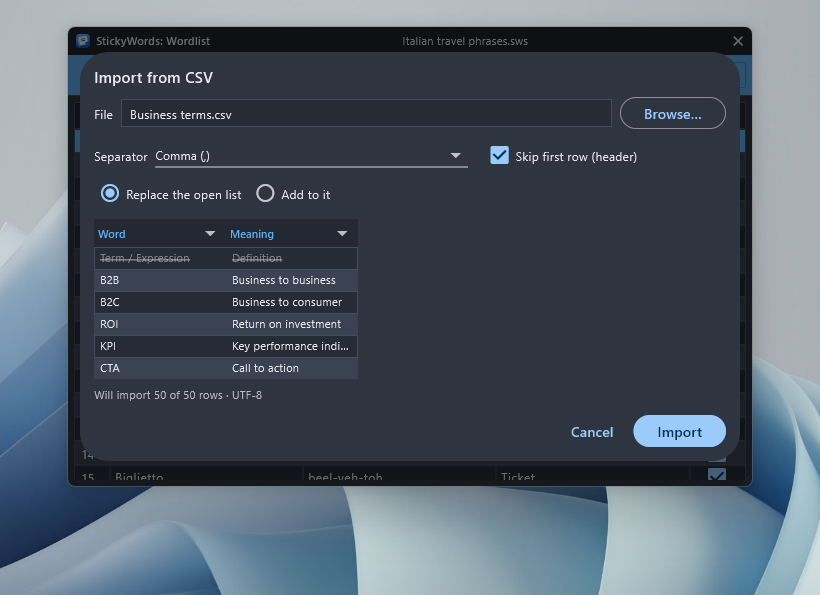
- Import from CSV, Anki or Quizlet
- Export what you already have as text, open it, and pick which column is which right above the preview. The header lines Anki writes and the formatting it embeds are handled for you.
- One list from many sources
- Add the imported rows to a list you already have, or replace it. Import from one file after another, and a long list builds up from all of them.
Since 1998
The third time around.
The original StickyWords. One note, one list, one idea that turned out to be worth keeping.
StickyWords 2. Different tools underneath, the same quiet note on top.
StickyWords 3: a new file format, real voice support, and the same small note.
Questions
Before you download.
Is it really free?
Yes. No ads, no trial, no in-app purchases and no subscription. The zip and the Microsoft Store build are the same application, and both are free.
Does it need an internet connection?
No. StickyWords works offline, and there is no account and no sign-up. The only thing the zip build asks the network for is a small file on this site, to see whether a newer version has been released; the Store version leaves that to Windows.
Is it only for languages?
No. A list is a set of pairs, and the note shows you one side and then the other, so anything with two sides fits: cases and what they decided, dates and what happened, formulas, capitals, drug names. Four of the six lists that ship with it are not languages at all.
Can I bring in a list I already have?
Yes, and not only from a spreadsheet: Anki and Quizlet both export the kind of delimited text the import dialog reads. It is a single dialog rather than a wizard. The preview table's column headings are the mapping dropdowns, the separator is read from the file or detected, and the status line runs the real parse as you change things. An import can replace the open list or append to it.
Put your list on screen.
Free, works offline, and no account to make. Download it, run it, and the note is already showing words.
Windows 10 & 11 · Version 3.0.1 · 13.7 MB zip